October 18, 2026Ceren Kaya Akgün
Slack Approval Workflow: Sheets, Email and AI
Build a Slack approval workflow from a Google Sheets row: Finance decides in Slack, the requester gets an email and the row records who approved. No code. →
A Slack approval workflow sends a request to the people who can decide it inside Slack, waits for Approve, Request changes or Reject, and records the answer where the request started. In Heym Work Flows that place can be a Google Sheets row, and the same flow can email the requester and write the decision back. You build it by choosing a trigger and up to 12 actions, with no code.
Most teams already run approvals across three places. The request sits in a sheet, Finance or IT decides in Slack, and the person who asked waits for an email. Someone copies the answer from one place to the next by hand. Heym Work 0.0.2, the business interface for Heym, our self-hosted AI agent platform, adds Flows to do the copying: three tools (Slack, Google Sheets and email), five triggers and eleven actions, with an optional AI draft in front of the approver.
This post is for the operations, finance, HR and IT leads who own a request process, and for the engineer who hosts Heym Work. It builds one purchase approval from the first sheet row to the last write back, shows three more flows on the same map, and says where Slack's own Workflow Builder is enough and where a flow stops.
It is not a comparison of approval software, and Flows works with Slack, not Microsoft Teams.
The short version:
- A Slack approval workflow has three parts. A request, a decision and a record. Flows connects all three: a new sheet row starts it, Slack decides it, and the row and the requester's inbox get the answer
- 3 tools, 5 triggers, 11 actions. Slack, Google Sheets and email. A flow starts on demand, on a schedule, on a Slack message, when a sheet changes or when an email arrives
- The AI draft is optional. It writes the summary the approver reads, from the row, the email, or the latest 10 to 100 messages of a channel
- Nobody answers twice. The same approval shows in Slack and in Heym Work Activity, and a decision in either place closes the other
- A flow is a straight line. One trigger, an optional AI draft and up to 12 steps, with no branches. Routing by amount belongs on the Heym canvas
- It runs on your servers. Flows needs Heym 0.0.131 or later, Heym Work 0.0.2 and an Editor or Owner role
The video follows one purchase request through all three tools in 2 minutes 4 seconds. It is an animated reconstruction of the screens with invented data for a company called Halden & Co., not a screen recording, so read it as a map of the flow, not as proof of a live run.
Table of Contents
- What Is a Slack Approval Workflow?
- Why an Approval Spans Slack, Google Sheets and Email
- Three Tools, Five Triggers, Eleven Actions
- Google Sheets Approval Workflow: Build the Purchase Flow Without Code
- What the Approver Sees and What Gets Recorded
- Three More Flows on the Same Map
- When Slack Workflow Builder Is Enough
- What Runs Underneath, and What to Watch
- Enterprise AI Automation Without Opening the Canvas
- Choose Your First Flow
- Frequently Asked Questions
- Sources
What Is a Slack Approval Workflow?
A Slack approval workflow sends a request to the people who can approve it inside Slack, pauses until one of them answers, then carries the answer to the next step. A complete one has three parts: a request that says what is being asked, a decision made with a button, and a record of who decided and when.
The record is what turns a chat into a workflow. Ravenna's guide to Slack approvals for IT, HR and finance defines traceability as "capturing who submitted, who approved, and when it happened", and its summary advice is "Avoid ad-hoc DMs." ClearFeed opens its guide with a question: "Have you ever lost an approval request in a flood of Slack messages?"
Those three parts can live in one tool or in several. This post is about several, because that is how many teams work: the request in a sheet, the decision in Slack and the answer in an inbox.
What Heym is: Heym is a source-available, self-hosted AI agent platform with a visual canvas for multi-agent pipelines, retrieval-augmented generation (RAG) and the Model Context Protocol (MCP). Heym Work is its business interface, and Flows is a screen in Heym Work. Everything this post says about Flows comes from the shipped source and documentation, checked on 18 October 2026, not from a roadmap.
Where Human in the Loop Fits
Human in the loop approval means a run pauses at a checkpoint for a person and continues from that person's answer. A Slack approval is one form of it. Heym stores the paused run and resumes it from that decision, the same way it does for an agent's review.
An AI approval workflow adds a model that drafts what the person reads, and the person still decides. Our guide to human in the loop AI agents covers the agent version, and the human-in-the-loop reference documents both ways of pausing. This post covers the version built from Slack, sheets and email.
Why an Approval Spans Slack, Google Sheets and Email
Spreadsheets sit under more automations than any other kind of app. Zapier analyzed 858,648 automation patterns across 4,302 apps, current as of 26 June 2026, and Stacker published the results on 21 September 2026. The spreadsheets category appears in 288,372 patterns, the most of any category. Google Sheets alone appears in 201,895, Slack in 109,203 and Gmail in 99,743. The study counts where automations run, not what they approve.
Each tool does one part of an approval well and leaves the other two to people.
A Sheet Holds the Request but Tells Nobody
A row is a good request form. Everyone knows the columns, and the history sits in one tab. A sheet cannot tell Finance that a row needs a decision, so teams write Apps Script, and Google's documentation sets the limits of that route. A simple trigger "can't send an email because the Gmail service requires authorization" and "can't run for longer than 30 seconds".
The quotas matter too. Google lists 90 minutes of total trigger runtime a day on a consumer account and 6 hours on Google Workspace, 20 triggers per user per script, and 100 or 1,500 email recipients a day. It also states that "Script executions and API requests don't cause triggers to run", so writing a decision into a cell with Range.setValue() does not fire the sheet's onEdit trigger. None of this stops you. It is the list of numbers to plan around.
Slack Holds the Decision but Its Sheets Step Is Narrow
Slack is where the approver already is, and a button is the fastest way to decide. Slack's help page for Google Sheets in Workflow Builder lists one step, Add a spreadsheet row. Slack "can only add workflow data to an empty row", dates and times use UTC+0 with no way to change the time zone, only one Google account can be connected at a time, and the feature is on paid plans. The page describes no trigger that starts a workflow when a spreadsheet changes.
Email Reaches the Person Who Asked
The requester is not always in the channel where Finance decides, and a sheet does not email anyone. A short message that says approved, changes requested or rejected closes the loop for them. If the request itself arrives by email, such as an invoice or a quote, the inbox is also where the flow should start.
Joining the three by hand means someone watches the sheet, pastes the request into Slack, waits, then types the answer into the row and an email. Joining them in code means an Apps Script project, a Slack app for the buttons and a mail service, each with its own limits. To automate approvals across Slack, Google Sheets and email without scripts, a flow replaces both with one list of choices that runs on your Heym: a no code approval workflow.
Three Tools, Five Triggers, Eleven Actions
Heym Work Flows is the screen where Editors and Owners build a flow: one trigger, an optional AI draft and up to 12 steps, chosen from 11 actions in Slack, Google Sheets and email and run as a straight line.
The Flows menu item appears for Editors and Owners. The page opens with a Connections card that shows the Slack workspace, the Google Sheets account, the inbox that receives and the email that sends. A flow stores the ID of each connection and never the secret itself.
Every flow has the same shape: one trigger, an optional AI draft and up to 12 steps. These are the five triggers.
| Trigger | Starts when | What you choose |
|---|---|---|
| On demand | Someone runs the flow | A request text the flow receives |
| On a schedule | The clock says so | A preset (every weekday at 09:00, every day at 09:00, every Monday at 09:00, every hour, every 15 minutes) or a cron expression, in the instance's time zone |
| On a Slack message | A message arrives | Messages in channels and DMs, direct messages to the bot, mentions of the bot, or messages in one channel |
| When a sheet changes | A row is added, changed or deleted | The spreadsheet and tab, which events to watch, an optional key column, and a check every 1, 5, 15 or 60 minutes |
| When an email arrives | A new message reaches an inbox | The inbox, and a check every 1, 5, 15 or 60 minutes |
The Slack message trigger ignores the bot's own posts, so a flow that answers in the same channel does not start itself.
Between the trigger and the steps sits an optional AI draft. It runs on the model you choose and receives what the trigger carries: the row values, the changed columns and the tab name, or the email's sender, subject and body, or the Slack message text, or the date. Later steps use its text as $draft.text.
Flows that start on demand, on a schedule or on a Slack message can also have the draft read the latest 10, 20, 50 or 100 messages of a channel first, and a Slack message flow can have it read the thread. If any step posts to Slack, the draft is written in Slack's formatting. Otherwise it is plain text.
Then come the steps. Choose actions in any tool and in any order, and each choice becomes the next step, whatever started the flow. These are the eleven actions.
| Tool | Action | What it does | Waits for an answer |
|---|---|---|---|
| Slack | Send channel message | Posts a status or an alert to a channel | No |
| Slack | Send DM | Notifies one person directly | No |
| Slack | Send form | Collects structured input | Yes |
| Slack | Send message with buttons | Offers quick actions, up to 5 buttons | Yes |
| Slack | Request approval | Offers Approve, Request changes and Reject | Yes |
| Slack | Reply in thread | Continues the context without channel noise | No |
| Slack | Update message | Changes a message to reflect a new state | No |
| Slack | Post final outcome | Closes the loop with a colored card | No |
| Google Sheets | Add a row | Records the data as a new row in a sheet | No |
| Google Sheets | Update the row | Writes back to the row that changed, in flows that start when a sheet changes | No |
| Send email | Mails a person, a team or the sender | No |
The three actions that wait for an answer pause the run. The same request then appears in Slack and in Heym, which the sections below cover.
Zapier's data also shows where automated work starts. Data changes start 25.4% of patterns, form submissions 22.2%, communication events 14.7% and schedules 7.8%. Flows covers three of those four with the sheet trigger, the Slack and email triggers, and the schedule. It has no form trigger, but Heym's documentation for the Google Sheets trigger names form responses as a use: a Google Form that saves to a sheet starts a flow through that sheet.
A flow is a straight line. Steps do not branch and nothing loops. Every step after an approval runs whatever the answer was, so two Request approval steps in a row ask the second approver even if the first one rejected. Routing by amount or by department needs a Condition or Switch node on the Heym canvas, where the answer is available as approval.
Google Sheets Approval Workflow: Build the Purchase Flow Without Code
A Google Sheets approval workflow starts from a row in a sheet, asks a person to approve it where they already work, and writes the decision back to the row.
The example is a purchase request. Requests are rows in a tab named Purchase requests, with the columns Requester, Requester email, Vendor, Amount, Reason, Status and Approved by. Finance decides in #finance, the requester gets an email and the row records who approved it. The names and amounts in the video are invented, and it shows the builder at 1:10.
Step 1: Connect the Three Tools
Open Flows and use the Connections card. Connect the Slack workspace with the bot token of a Slack app, the Google Sheets account and the email that sends. Add the inbox that receives only for flows that start from an email. The Slack app also needs one or two URLs set in Slack, which the section on what to watch lists.
Step 2: Start When a Sheet Changes
Choose When a sheet changes, paste the spreadsheet, enter the Purchase requests tab and keep Added rows only. Set the check to every 5 minutes. The step that updates the row would otherwise start the flow again, and Heym's documentation for the trigger says to keep only added rows on when a flow writes back to the sheet it watches. The builder enforces that when you save.
Step 3: Add an AI Draft
Turn on the AI draft, choose a model and pick the ready-made job Describe the new row: "Describe this new sheet row in one or two lines for the team, with the most important values first." The draft is optional. Leave it off and the approver reads only the row values you insert yourself.
Step 4: Ask for Approval in Slack
Add Request approval and choose #finance. Write the message with the Insert chips under the field, which add values from the row, the AI draft or an earlier answer, so you do not type the tokens. The example message is a bold title, the draft and the Requester, Vendor, Amount and Reason values. In Who can answer, enter the emails of the people allowed to decide, or leave it empty so anyone in the channel can.
Step 5: Email the Requester and Write the Decision Back
Add Send email and address it to the Requester email column. Use a subject such as "Your purchase request:" followed by the approval value from the Insert chips. Then add Update the row and write the approval into the Status column and the name of the person who answered into the Approved by column. Flows reads the tab's header row, so each column gets its own value.
Step 6: Post the Outcome, Save and Test
Add Post final outcome so the thread ends with a card. Its color follows the decision: green when approved, amber when changes are requested and red when rejected. Save when the review says Ready to save, then add one row to the tab and wait for the next check.
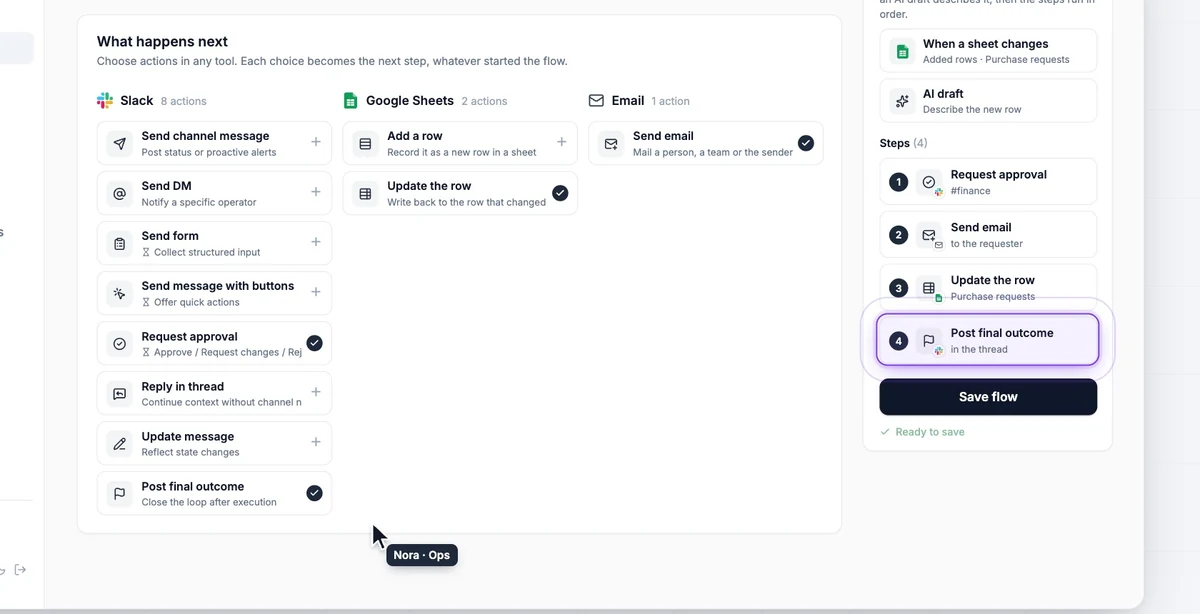
Because a flow has no conditions, the email and the row update run for every outcome. That is why both use the approval chip instead of a fixed word. The same two steps report approved, changes requested and rejected, and the requester always hears back.
What the Approver Sees and What Gets Recorded
Finance sees one message in #finance with the draft, the row's values and three buttons: Approve, Request changes and Reject. Request changes asks the reviewer for a comment and passes it on as $step1.comment. Later Slack steps stay in that message's thread, and the outcome card closes it.
The same request is also waiting in Heym Work Activity with the same three buttons, and in the Heym inbox. A click in Slack takes the buttons off the message. A decision made in Activity replaces them with a note. Either way nobody answers twice. The video shows both sides at 1:23.
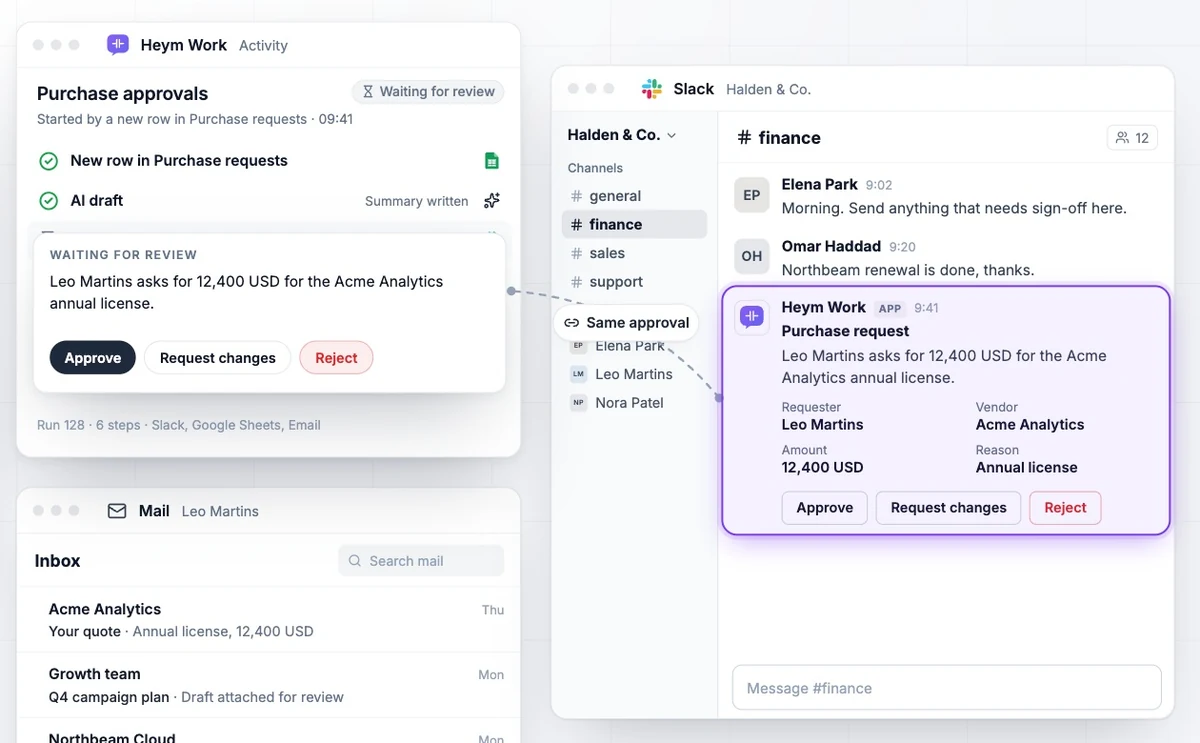
By default anyone in the channel can answer. Add email addresses to Who can answer and only those people can. $step1.answeredBy.name holds the Slack name of the person who answered, and $step1.answeredIn says whether the answer came from Slack or from Heym. When a review is decided in Activity the name is empty, so an Approved by cell stays blank in that case.
Ravenna's three questions have an answer in this flow.
| Question | Where Heym records it |
|---|---|
| Who submitted it? | The Requester column of the row that started the flow |
| Who approved it? | The Approved by cell, written from the Slack name of the person who clicked |
| When did it happen? | The run in Activity, which shows when it started |
Some guides keep the record inside the sheet only. sheetautomation.com recommends copying each decided row to a Decisions Log tab and identifies approvers through Approver and Approver Email columns, which are values someone types. Here the name comes from the Slack account that clicked, and the run is kept in Activity as well.
A request that nobody answers expires after 168 hours, which is 7 days. A paused run resumes from the snapshot stored when it paused, not from the latest version of the flow, so editing a flow does not change a request that is already waiting.
Three More Flows on the Same Map
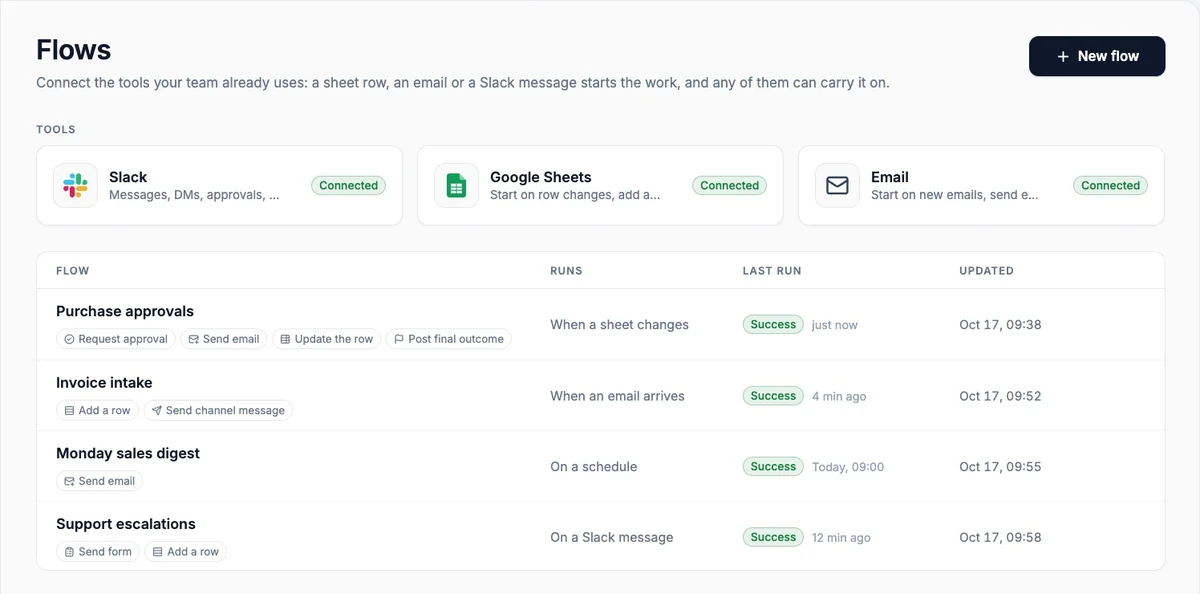
The same five triggers and eleven actions cover other jobs. The Flows list in the video, at 1:53, shows four flows, each a straight line, with the trigger and the steps of each. The AI drafts in the table are the ready-made jobs I would start from.
| Flow | Starts when | AI draft | Steps |
|---|---|---|---|
| Purchase approvals | A sheet changes (added rows) | Describe the new row | Request approval, Send email, Update the row, Post final outcome |
| Invoice intake | An email arrives | Summarize the email | Add a row, Send channel message |
| Monday sales digest | On a schedule | Daily digest of a channel | Send email |
| Support escalations | On a Slack message | None | Send form, Add a row |
Invoice Intake: An Email Becomes a Row and a Message
Start on When an email arrives, with the inbox that receives invoices. Turn on the AI draft with Summarize the email, which asks for who wants what and by when in two lines. Add a row puts the sender, the subject and the summary into their own columns, and Send channel message tells the finance channel. The email trigger records a baseline on its first check and then starts one run per new message.
The Google Sheets step gives each column one value, so it cannot pull an amount or an invoice number into separate columns by itself. For that, build the extraction on the canvas.
Monday Digest: A Schedule, an AI Summary and an Email
Start on On a schedule with the preset Every Monday at 09:00, which follows the Heym instance's time zone. The AI draft reads the latest 50 messages of a channel. Start from the ready-made job Daily digest of a channel, which asks for the three most important updates, anything blocked and what needs attention, and edit it for a weekly rhythm. Send email delivers the text. No step posts to Slack, so the draft is plain text.
Support Escalations: A Message Becomes a Form and a Row
Start on On a Slack message, scoped to one channel or to mentions of the bot. Send form posts a message with an Open form button, and the person who clicks it fills in up to 10 fields. Add a row then records the answers. A form title can be at most 24 characters.
If you would rather build a similar approval on the canvas, the PTO request approval template posts an agent's review link to a channel from its review branch. For other jobs to wire by hand, see our AI workflow automation examples.
When Slack Workflow Builder Is Enough
We build Heym Work, so weigh this section with that in mind: every statement about Slack and ClearFeed below is quoted from their own pages.
If your team lives in Slack, has one approver per request and does not need reports, Slack's own Workflow Builder is enough. ClearFeed says as much: it fits "a small team, a single approver per request, and no need for SLAs, audit reports, or ticket handoff".
Where it runs out, in ClearFeed's words, is "conditional routing across many approver chains, multi-level approvals, dynamic approvers pulled from an HRIS", plus "SLA reminders on stalled approvals, backup approvers, and reporting across all approvals in one place."
Heym Work Flows changes little on that list. A flow has no conditional routing, none of its eleven actions sends a reminder while a request waits, and a second approval cannot depend on the first answer. What differs is where the request starts, what else the flow touches and where it runs.
| Question | Slack Workflow Builder | Heym Work Flows |
|---|---|---|
| Where does it run? | In Slack | On your own Heym servers |
| Can a sheet change start it? | Slack's Google Sheets help page describes no such trigger | Yes, on added, changed or deleted rows, checked every 1, 5, 15 or 60 minutes |
| Can it write the decision back to the row? | The Google Sheets step adds data to an empty row | Update the row writes back to the row that changed |
| Which Google Sheets steps exist? | One, Add a spreadsheet row | Add a row and Update the row |
| What does it need? | A paid Slack plan for the Google Sheets step | Heym Work 0.0.2, Heym 0.0.131 or later and a license |
| Conditional routing and multi-level approvals | ClearFeed says it runs out here | No conditional routing. Two approvals can run in a row, and the second is asked whatever the first answer was |
Pick the Workflow Builder when the whole job happens inside Slack with one approver. Pick Flows when a sheet or an inbox starts it, the answer has to land in a row or an inbox, or the data has to stay on your servers. Among Slack Workflow Builder alternatives, Flows fits only jobs that start or end outside Slack.
What Runs Underneath, and What to Watch
Saving a flow builds an ordinary Heym workflow, and each run is listed in Activity. To check the mapping, the purchase flow was written as a flow spec, with placeholder connections, and run through the graph builder and the problem check of Heym Work 0.0.2 on 18 October 2026. The check reported no problems and the builder returned six nodes joined by five edges. That is a build check, not a live Slack run.
| Order | Heym node | What it does in the purchase flow |
|---|---|---|
| 1 | Google Sheets trigger, labeled sheetEvent | Watches the Purchase requests tab for added rows every 5 minutes |
| 2 | LLM, labeled draft | The AI draft, given the row, the changed columns and the tab name |
| 3 | Slack, Request approval, labeled step1 | Posts to #finance and waits for an answer |
| 4 | Send email, labeled step2 | Mails the requester, to the Requester email column |
| 5 | Google Sheets, update, labeled step3 | Writes the decision and the approver's name into the row that started the flow |
| 6 | Slack, Post final outcome, labeled step4 | Replies in the thread of step 1 with a card colored by the decision |
The labels are the names in the tokens: $sheetEvent.row.Vendor is a value from the row, $draft.text is the AI draft and $step1.approval is the answer. A column name with a space uses brackets, as in $sheetEvent.row["Requester email"]. The chips insert them for you.
How Quickly Does a Sheet or Email Trigger Start a Flow?
Sheet and email triggers look for changes every 1, 5, 15 or 60 minutes. They do not push, so a flow starts at the next check.
- The first check records the sheet or the mailbox as it is and starts nothing, so rows and emails that already exist do not fire.
- After that each changed row starts exactly one run, also when Heym runs several workers, and each new email starts one run.
- One sheet check starts at most 50 runs, and the rest follow on the next checks.
- A tab with more than 10,000 rows is skipped.
Heym stores no cell values for this. It keeps each row's number and a keyed fingerprint per cell, and a run reads the row's current values from Google. Set a key column such as Request ID: without one, rows are matched by their number, and deleting a row in the middle reads as a change for every row below it.
What Does the Slack App Need?
The Slack app needs a bot token, a signing secret and one or two URLs that point at your Heym. Heym's Slack node documentation walks through the setup.
- Copy the app manifest from the Slack Bot credential dialog and create the Slack app from it.
- Install the app to your workspace, then paste the Bot User OAuth Token and the Signing Secret into the credential.
- Copy the credential's Interactivity Request URL into the Slack app. It carries the answers to approvals, buttons and forms.
- For flows that start on a Slack message, also copy the Event Subscriptions Request URL.
- Invite the bot to the private channels it should post in.
Slack sends those requests to your Heym, so your Heym address must be reachable from Slack, and our guide to giving a self-hosted instance a public address covers the four ways to do that. Slack's developer documentation says an app must acknowledge an interaction "within 3 seconds of receiving the payload", or the person who clicked sees an error.
What Stops a Flow From Starting Itself?
The builder refuses to save a flow that would start itself, and each message names the step. Changing the purchase flow's spec on purpose reproduced the first two. The third comes from the builder's checks.
- Watching changed rows while a step updates the same row: "Step 3: watch only added rows, or this update starts the flow again."
- Adding a row to the tab that starts the flow, here as a fifth step: "Step 5: adding a row to the tab that starts this flow would start it again."
- Updating a row in a flow that does not start from a sheet: "Step 2: updating a row needs a flow that starts when a sheet changes." The step number varies.
What Are the Limits of a Flow?
- A flow has at most 12 steps.
- A message with buttons carries at most 5 buttons.
- A form has at most 10 fields, and its title is at most 24 characters.
- A sheet step writes at most 26 columns.
- After a server crash in the rare moment between recording a change and starting its run, the Sheets trigger can drop that one change. It never runs a change twice.
Enterprise AI Automation Without Opening the Canvas
Enterprise AI automation is a crowded term. Vellum's guide, published on 1 March 2026, describes the platforms as "agent-building environments" and lists what an ideal one has, including "Fine-grained RBAC, SSO/SAML support, and immutable audit logs for full traceability" and "Data residency options and private networking". Held against that list, Flows meets some items and misses others.
| Vellum's criterion | In Heym Work Flows | Fit |
|---|---|---|
| Role-based access | Owner, Editor and Viewer roles. Flows appear in the menu for Editors and Owners | Partly: three roles, not fine-grained permissions |
| Single sign-on | People sign in through the single sign-on configured in Heym | Yes |
| Audit trail | Every run is listed in Activity, and an approval can write the Slack name of the person who decided into a row | Partly: a run history, with no claim that it is immutable |
| Data residency and private networking | Heym and Heym Work run on your servers, and workflow content stays there | Yes, except what you send to a model provider |
| Approval workflows | Request approval in Slack or in Activity | Yes |
| Many systems | Three tools in Flows, and more on the Heym canvas | No: three tools |
The honest limit is the last row. Flows connects three tools and runs a straight line. When a job needs a CRM, an HR system or a branch, the same Heym runs it on the canvas, and Chat in Heym Work can build a workflow from a description. Our introduction to Heym Work covers both, and the guide to enterprise AI agents covers the governance side.
Zapier's data suggests how plain most of this work is. Sending notifications is 19.2% of the 858,648 patterns, creating records 17.6% and updating records 14.4%, which adds up to 51.2%. Flows maps those three onto its actions: messages, DMs and emails notify, Add a row creates a record and Update the row updates one. In Zapier's data a record can live in any app. In Flows it is a spreadsheet row.
None of this makes the decision for you. The flow puts a person in the loop where a decision matters, keeps the record in your own systems and leaves the data on your own servers. For the wider picture, see AI agent governance and self-hosted AI agents.
Choose Your First Flow
Use this worksheet before you open Flows. The example column is the purchase flow.
| Question | Why it matters | Example |
|---|---|---|
| Where does the request start? | It picks the trigger | A new row in Purchase requests |
| Who decides, and where do they already work? | It picks the channel and the Who can answer list | Finance, in #finance |
| Who must hear the answer? | It picks the email or Slack step | The requester, by email |
| Where must the answer be recorded? | It picks the columns for Update the row | Status and Approved by |
| What does the approver need to read? | It sets the AI draft instructions | Vendor, amount and reason in two lines |
| What happens if nobody answers? | A request expires after 168 hours | The Finance lead checks Activity each morning |
- Pick one request that already lives in a sheet. If you do not know where to begin, I would start with the approval that gets chased most often.
- Connect Slack, Google Sheets and email on the Connections card.
- Build the flow and test it with one row on a copy of the sheet.
- Watch Activity for a week and change the draft instructions until the approver stops asking for more.
- Request a trial if you do not have a Heym Work license yet.
A Slack approval workflow has a request, a decision and a record. In the purchase flow the request is a row, the decision is a button in Slack, and the record is the Approved by cell with the run in Activity.
If your approvals are still copied by hand, request a trial and build the purchase flow on one real sheet. The Slack node documentation covers the app setup, and the Google Sheets trigger, the IMAP trigger and the Slack trigger pages cover what starts a flow.
Frequently Asked Questions
What is a Slack approval workflow?
A Slack approval workflow sends a request to the people who can approve it in Slack, waits for Approve, Request changes or Reject, and carries the answer to the next step. A complete one has a request, a decision made with a button and a record of who decided and when. In Heym Work Flows the request can start from a Google Sheets row or an email.
Can I build a Google Sheets approval workflow in Slack without code?
Yes. In Heym Work Flows, choose When a sheet changes as the trigger, then add Request approval, Send email and Update the row, and save. You choose the tab, the channel and the columns, and the builder refuses to save a flow whose step would start it again. Flows needs an Editor or Owner role in Heym Work 0.0.2 and Heym 0.0.131 or later.
What can Heym Work Flows connect?
Three tools: Slack, Google Sheets and email. A flow starts on demand, on a schedule, on a Slack message, when a sheet changes or when an email arrives. It then runs up to 12 steps chosen from 11 actions: eight in Slack, two in Google Sheets and one for email. An optional AI draft can write the text the approver reads.
Who can approve a request, and can anyone in the channel answer?
You decide. The Request approval step has an optional Who can answer field that takes email addresses. If it is empty, anyone in the channel can answer. The same request also appears in the Heym inbox and in Heym Work Activity, so a reviewer can decide there instead. A click in either place settles it, and nobody answers twice.
What is recorded after the decision?
The decision is one of approved, changes requested or rejected. A later step can write it into the sheet row, email it to the requester and post a colored outcome card in the Slack thread. The step also records the Slack name of the person who answered, which is empty when the review is decided in Activity. Every run is listed in Heym Work Activity.
How is this different from Slack Workflow Builder?
Slack's Workflow Builder fits a small team with one approver and no need for SLAs or audit reports, as ClearFeed puts it. Slack's help page lists one Google Sheets step, Add a spreadsheet row, and no trigger that starts from a sheet change. Flows can start from a sheet or an email, add an AI draft and update the row, and it runs on your own servers.
Can a flow have several approvers or branches?
A flow is a straight line with no branches, loops or conditions. You can add two Request approval steps in a row, but the second is asked whatever the first answer was. Routing by amount or department needs a Condition or Switch node on the Heym canvas, where the answer is available as approval with the values approved, changes_requested or rejected.
How fast does a sheet or email trigger start a flow?
Sheet and email triggers look for changes every 1, 5, 15 or 60 minutes, so a flow starts at the next check, not instantly. The first check records a baseline and starts nothing. After that each changed row and each new email starts one run, and a single sheet check starts at most 50. A Slack message trigger starts when Slack sends the event.
Where does a flow run, and what do I need to use it?
Flows runs inside Heym Work, which runs next to your own Heym on your servers. You need Heym Work 0.0.2, Heym 0.0.131 or later, a license and the Editor or Owner role to see Flows. Slack connects through the bot token of a Slack app. The optional AI draft sends the row or email text to the model provider you choose.
Sources
- Zapier, published through Stacker by KTVZ, The most common business automation use cases in 2026, according to 20 million live workflows, 21 September 2026. An analysis of 858,648 automation patterns across 4,302 apps, current as of 26 June 2026: spreadsheets in 288,372 patterns, Google Sheets in 201,895, Slack in 109,203 and Gmail in 99,743; data changes start 25.4% of patterns, form submissions 22.2%, communication events 14.7% and schedules 7.8%; lead capture 29.9%, sending notifications 19.2%, creating records 17.6% and updating records 14.4%, together 81.1%.
- Google, Apps Script quotas and Apps Script triggers, both showing "Last updated 2026-09-03 UTC", read 18 October 2026. Trigger runtime of 90 minutes and 6 hours a day, 20 triggers per user per script, 100 and 1,500 email recipients a day, and the restrictions on simple triggers.
- Slack, Use Google Sheets with Workflow Builder, help center, read 18 October 2026. The Add a spreadsheet row step, the empty row rule, UTC+0, one Google account at a time and paid plans.
- Slack, Handling user interaction, developer documentation, read 18 October 2026. The 3 second acknowledgment for interaction payloads.
- ClearFeed, Slack Approval Workflow guide, 28 August 2026. When Workflow Builder fits, where it runs out, and the opening question.
- Ravenna, Slack approvals workflows, published 16 October 2026 according to the page. The definition of traceability and the advice on ad hoc DMs.
- Vellum, Guide to enterprise AI automation platforms, 1 March 2026. The definition and the list of what an ideal platform has.
- sheetautomation.com, Approval workflow in Google Sheets, 29 March 2026. The Approver and Approver Email columns and the Decisions Log tab.
- Heym Work, checked against its source and release notes on 18 October 2026, version 0.0.2 (tagged 17 October 2026): the five triggers, eleven actions and their limits, the straight line shape, the AI draft inputs, the approval answers and the loop checks, and a run of the purchase flow's spec through its flow builder.
- Heym, Three Tools, One Flow: Sheets, Slack and Email in Heym Work, a 2 minute 4 second animated reconstruction with invented data, and the frames used above.
- Heym documentation: Slack node, Slack Trigger, Google Sheets Trigger, IMAP Trigger, Human-in-the-Loop and Heym Work, read 18 October 2026.
Steps at a glance
- Connect the three tools. Open Flows in Heym Work and use the Connections card. Connect the Slack workspace with the bot token of a Slack app, the Google Sheets account and the email that sends. Add the inbox that receives only if a flow starts from an email.
- Start the flow when a sheet changes. Choose When a sheet changes, paste the spreadsheet, enter the tab name and keep Added rows only. Set how often Heym checks, from every 1 to every 60 minutes.
- Add an optional AI draft. Turn on the AI draft, choose a model and pick a ready-made job such as Describe the new row. The draft receives the row and is available to later steps as $draft.text.
- Ask for approval in Slack. Add Request approval, choose the channel and write the message with the Insert chips. Add the emails of the people allowed to answer, or leave the field empty so anyone in the channel can.
- Email the requester and write the decision back. Add Send email to the requester's address and Update the row to write the decision and the approver's name into two columns. Both use the answer from the approval step, so they work for every outcome.
- Post the outcome, save and test. Add Post final outcome so the thread ends with a card colored by the decision. Save when the review says Ready to save, then add one row to the tab and wait for the next check.

Co-founder & Engineer
Ceren is a co-founder and engineer at Heym, working on AI workflow orchestration and the visual canvas editor. She writes about AI automation, multi-agent systems, and the practitioner experience of building production LLM pipelines.
Reviewed by Mehmet Burak Akgün. Statistics cite named, dated sources, and claims about Heym are verified against the source code before publication. See our editorial policy or report a correction.
Enjoyed this post? Get the next one in your inbox.
A monthly note with practical ideas for building AI workflows that hold up in production. No noise, and you can unsubscribe anytime.